If you wish to delete a saved credit or debit card from your account, you can easily remove it directly inside the app.
Steps to remove a payment card:
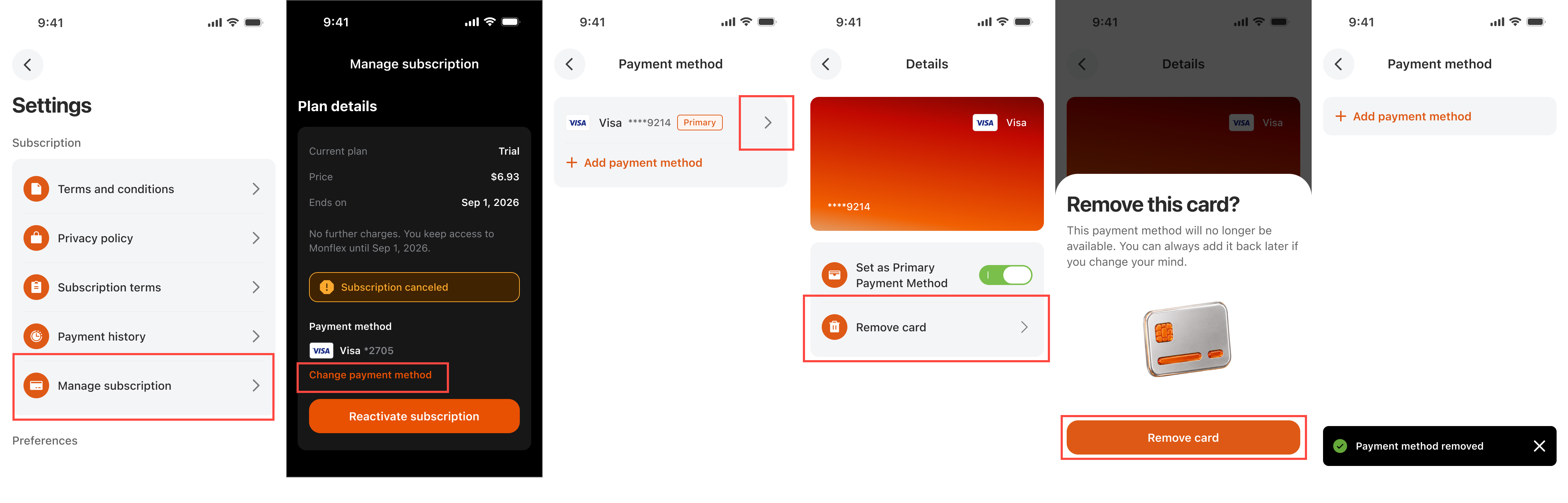
- Open the Monflex app on your device.
- Go to your Profile section by tapping the Profile Icon in the Home Page.
- Tap the gear icon at the top of the page to open Settings.
- Tap Manage Subscription.
- Tap Change payment method under your current payment details.
- Tap on the specific card you wish to delete to open its Details page.
- Tap Remove card.
- Confirm your choice by tapping Remove card on the pop-up modal.
Once confirmed, a notification will appear confirming the "Payment method removed." The card will be permanently deleted from your saved payment options, and you will not have to worry about future charges on that card.
Note: You can always add a new payment method back at any time by selecting + Add payment method in the same menu.
If you experience any issues removing your payment method, contact us at support@monflex.io or by submitting a ticket to the Support Center.