You can easily switch to dark mode in the Monflex app. Here is how:
- Open the Monflex app.
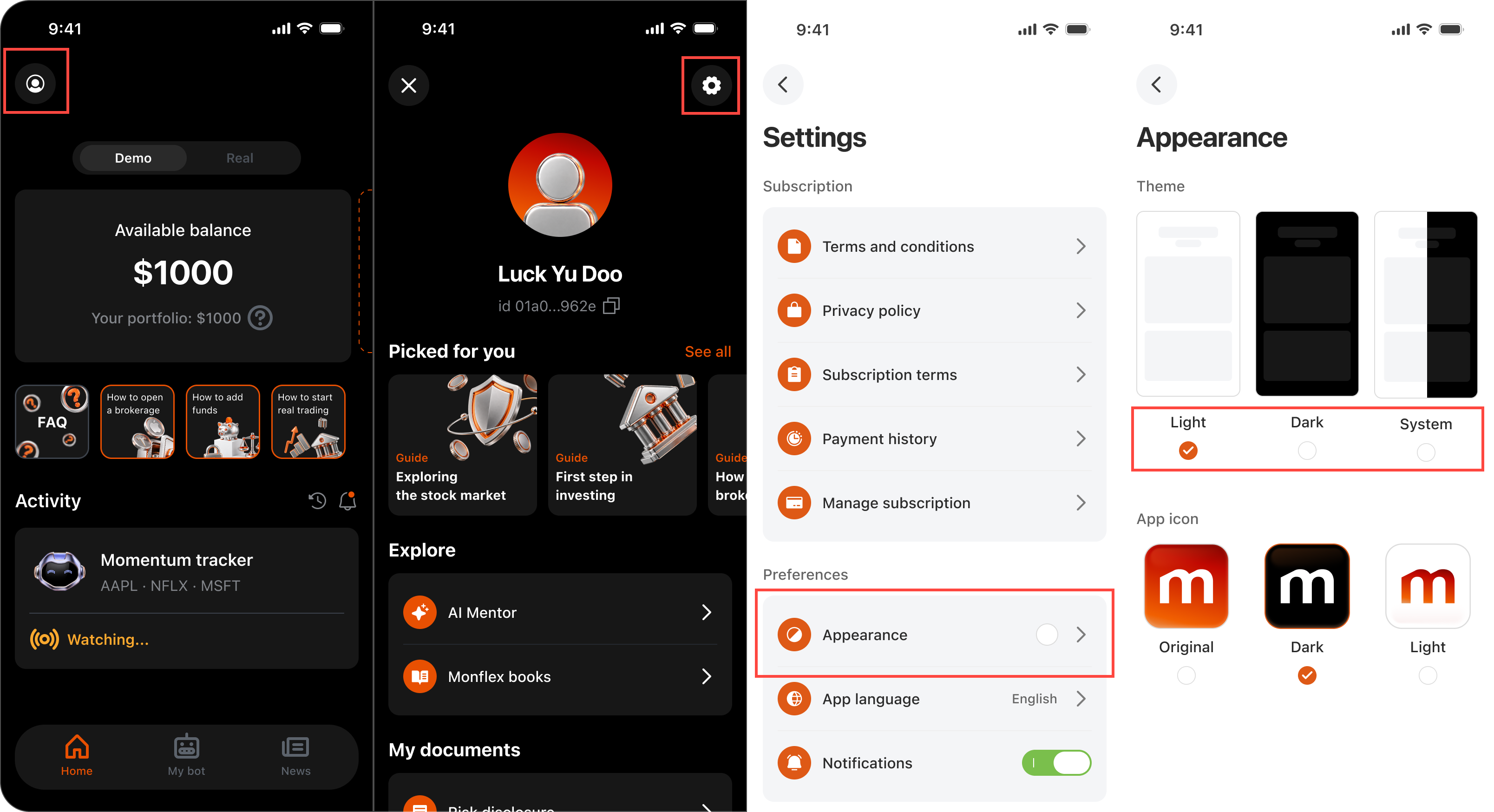
- Go to your Profile section by tapping the Profile Icon in the Home Page.
- Tap the gear icon at the top of the page to open Settings.
- Look for the Appearance option and tap on it.
- Select Dark Theme to switch to dark mode.
You can return to this menu at any time to switch back to Light Theme.
Customizing App Icon Appearance:
Inside the Appearance menu, you can also customize the Monflex app icon on your device's home screen. You can choose between:
- Original
- Dark
- Light
If you experience any issues changing display modes or app icon themes, contact us at support@monflex.io or by submitting a ticket at the Support Center.