The banner at the top of the Trades tab shows what AI is doing right now. The tabs below it (In trade, Watching, Closed, Expired) show your active and past trades.
How asset scanning works
AI scans a watchlist of U.S. stocks and ETFs. The number of assets depends on your Trading Profile.
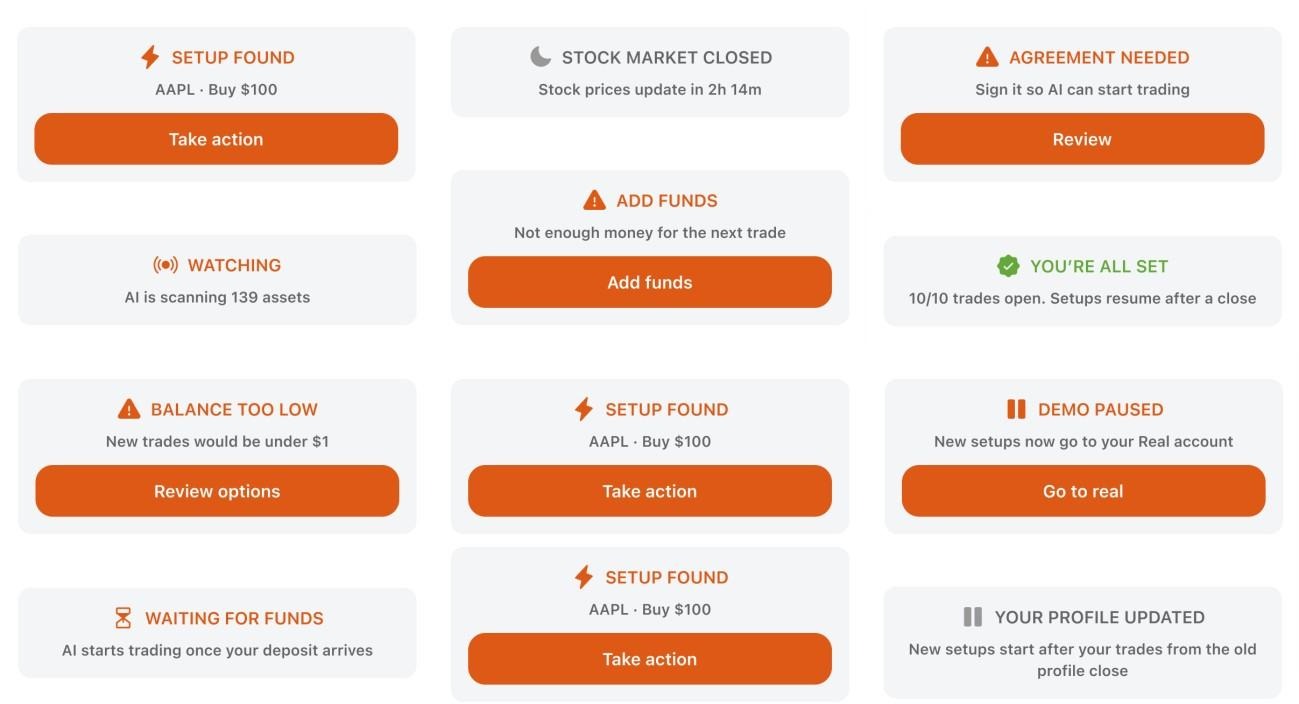
AI status banners on the Trades screen
WATCHING: AI is looking for setups. Your open trades are listed under In trade, up to your profile's limit.
SETUP FOUND: AI found a setup. Up to 2 banners can appear at once. Tap Take action to approve or decline. Setups you don't approve within 15 minutes move to Expired.
STOCK MARKET CLOSED: Appears in the evenings, at night, on weekends, and on holidays. Open stock trades show "Market closed", and Stop Loss / Take Profit trigger when the market opens.
YOU'RE ALL SET: All trade slots for your profile are filled (for example, "10/10 trades open. Setups resume after a close"). New setups come when a trade closes.
SUBSCRIPTION EXPIRED: Your subscription ended, so AI doesn't send new setups.
AGREEMENT NEEDED: Tap Review to sign the Digital Investment Advisory Agreement.
ADD FUNDS: You don't have enough free money for a new trade. Tap Add funds.
BALANCE TOO LOW: A new trade would be under $1. Tap Review options to add money or set trades to $1.
WAITING FOR FUNDS: In Real mode, AI waits while your deposit is on its way.
DEMO PAUSED: Real mode is set up, so new setups go to Real. Open Demo trades still close normally.
YOUR PROFILE UPDATED / New trades paused: After a profile change, AI waits until your open trades fit the new limits.
Closes at market open: Trades that are being closed automatically while the market is closed (for example, after you end your agreements) close when the market opens.
If you have any questions, contact us at support@monflex.io or submit a ticket.